TL;DR: Orca turns “running N AI coding agents simultaneously” from the chaos of multiple terminal windows into a desktop workbench with a sidebar, worktrees, and session recovery. The desktop version gets you started with a single command; the more hardcore approach is running headless
orca serveon a server, with your browser and phone acting as remote clients. I ran the full chain from AppImage to pure CLI control on WSL2 — repo registration, terminal creation, command dispatch — all without ever opening a browser.
1. What Problem Does Orca Solve?
You’ve probably been there: Claude Code, Codex, OpenCode — five or six terminal windows open at once, each running a different task, all window titles identical, mis-switching is the norm, git branches stepping on each other.
Orca (stablyai/orca, YC-backed, self-described as an ADE — Agent Development Environment) targets exactly this. Three key concepts:
Worktree: One isolated git worktree per task. This is Orca’s foundation — not the “logical isolation” of creating a branch, but a real checkout into separate directories. Agent A modifying code will never touch Agent B’s workspace. The official docs are explicit: it’s not a git replacement; every worktree is a real git worktree, and you can cd in and use native git at any time.
Agents as members: Orca doesn’t provide models itself — it runs agents you already subscribe to. Claude Code, Codex, OpenCode, Cursor CLI are all supported, each using its own official account. Your Claude subscription works in any worktree.
Session recovery: Close Orca, reopen it — agent sessions, terminal state, diffs are all still there. The hibernation mechanism can even freeze inactive agents to save resources.
2. Installation: Three Desktop Paths, Up and Running in 10 Minutes
The desktop version is the primary path. The official download page provides builds for each platform:
- macOS: DMG for Apple Silicon / Intel
- Windows: Installer exe
- Linux: AppImage (auto-updating) or .deb / .rpm
Fastest validation: download the AppImage, chmod +x, double-click or run from the command line. On first launch, Orca walks you through logging into your agent accounts (Claude/Codex, etc.), then you open a project and get to work.
One detail for Linux users: the CLI is called orca-ide, deliberately avoiding a name clash with GNOME’s Orca screen reader.
The recommended beginner route is the “Your first 3-agent session” walkthrough in the docs: open a project → create 3 worktrees → send a task to each → watch three parallel progress bars in the sidebar. 15 minutes is enough to build the full mental model.
3. Four Ways to Run It — Pick What You Need
The official “Ways to run Orca” documentation lists four modes, covering the spectrum from individual to team use:
| Mode | Best For | Core Command |
|---|---|---|
| Local Desktop | Most people | Install and go |
| SSH Worktrees | Agents on a remote machine, controlled locally | Import SSH config, select Run on |
| Remote Orca Server | 24/7 agent uptime, mobile reconnection | orca serve --pairing-address <ip> |
| Cloud VM (experimental) | Independent sandbox per worktree | Settings → Experimental |
The Remote Server is the most interesting mode: a machine you control (old laptop, Mac mini, VPS) runs Orca, holding all workspaces, terminals, and agent processes, while your laptop/browser/phone are pure clients. Close your laptop lid — agents keep running. Open your phone — you’re back in the same session.
The easiest recommended setup is installing Tailscale on both ends. The server generates an access link via Settings → Remote Orca Servers → Advertise this app as a server, and the client pairs by pasting the link via Add Server. For headless scenarios (a Linux server with no display):
| |
4. My Headless Test: The Full Chain on WSL2
I ran a more extreme validation on WSL2: can you use it without a desktop, without a browser? The answer is yes — and this happens to be a hidden side of Orca: the CLI itself is a complete control plane.
After starting the headless server, you can perform every operation from the terminal:
| |
In my testing, I created a terminal for the CLIProxyAPI project, used terminal send to dispatch commands and terminal read to capture output. Combined with the orchestration family of commands (task creation, dispatch, messaging), you can even orchestrate multi-terminal collaboration. The browser UI is merely a visualization layer on top of these capabilities.
One caveat that must be stated: On startup, Orca rewrites every agent config file it recognizes under $HOME. I tested in an isolated HOME and it still wrote 6 config files (codex’s config.toml, hermes’s config.yaml, etc.) — some integrations use hardcoded real paths that sandboxing can’t block. So the correct posture for headless deployment is:
| |
5. Web Client Pairing: A Counterintuitive Pitfall
The pairing process itself is simple: when the server starts via orca serve, it prints a Web client URL. Open that token-bearing link in a browser and pairing completes automatically.
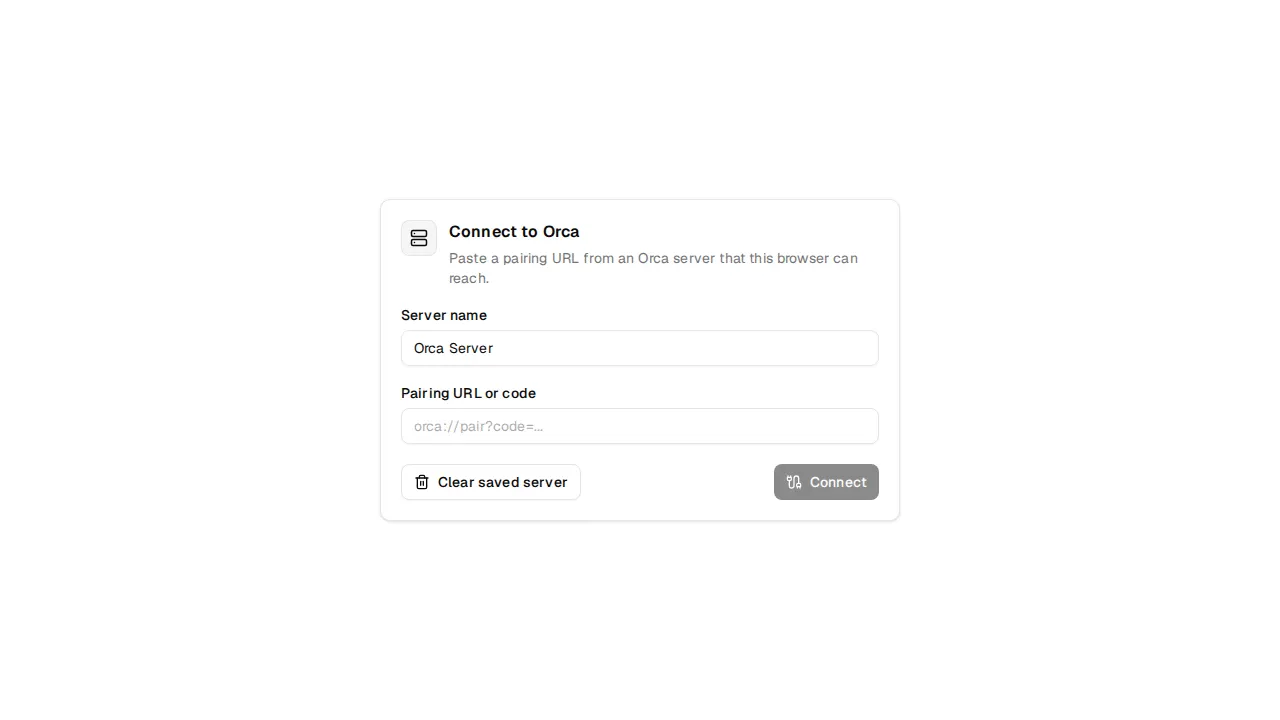
The pitfall (encountered in practice, debugged for nearly an hour): The pairing URL is a long base64 string containing a device token. I manually transcribed this string from the logs into a chat message, then copied and pasted it — and got 4 characters wrong. The server returned “Unauthorized. Pair this web client again.” The page tells you to “re-pair,” but you re-paste the same wrong code — a dead loop.
There’s only one correct approach: extract it from the machine’s logs, with zero human transcription:
| |
Copy the entire output directly into your browser. Once paired, the browser stores the token in localStorage; from then on, just navigate to http://server:6768. To switch accounts, click “Clear saved server.”
6. Persistence: Let systemd Manage It, Not nohup
For a headless server running 24/7, don’t use nohup ... &. In my testing, processes started via nohup from an interactive session were cleaned up when the session ended — dying silently, with logs frozen at the startup moment, no crash record, as if they’d evaporated.
A systemd user service is the right answer — a 5-line unit file:
| |
The MemoryMax sets an upper bound: in practice, Orca (Electron-based) sits stably around 500+ MB across 8 processes, so 1G is a safe ceiling. Register it with systemctl --user enable --now, and it auto-restarts on crash and auto-recovers on reboot.
7. Is It Worth Switching?
Two days of testing gave me three takeaways:
Worth it: If parallel multi-agent is a genuine need, the combination of worktree isolation + session recovery + mobile reconnection currently has no open-source alternative at the same caliber. Documentation quality is high, and the first-session onboarding is well-designed.
Wait and see: Single-agent users get limited benefit — one Claude Code terminal is already enough. Orca’s value only materializes with 3+ agents running in parallel.
Heads up: Its behavior of rewriting agent config files is aggressive. On machines where multiple tools coexist, an isolated HOME is mandatory. Additionally, the mobile client and cloud VM features are still in rapid iteration — the issue tracker shows plenty of rough edges.
One concrete number: my headless deployment, from AppImage download to successful phone pairing, hit 5 snags along the way and took about 3 hours total. Following this guide to sidestep those pitfalls, I’d estimate around 40 minutes.