
Every time I open the new Outlook, there’s an Adobe ad perched at the top of my inbox. Photoshop and Acrobat take turns showing up—and they’re all in Japanese. My first instinct was the same as most people’s: switch back to the ad-free classic Outlook.
But after checking my machine, I realized that path was a dead end.
Switch to Classic? My Machine Doesn’t Even Have It
I ran a PowerShell script from WSL to scan the machine, and the conclusion was straightforward:
- Office is the Home and Student edition—this SKU only includes Word/Excel/PowerPoint, no Outlook;
- The classic Outlook
OUTLOOK.EXEdoesn’t exist at the standard path; - The ad-supported version I’m currently using is Microsoft’s standalone free app “New Outlook for Windows” (Appx package
Microsoft.OutlookForWindows).
In other words, that “switch back to classic” toggle simply doesn’t appear on my machine—there’s no classic version to switch to. To get it, I’d need to pay for an Office bundle that includes Outlook or subscribe to Microsoft 365. That’s not a free solution.
Where the Ads Come From: A Dedicated Domain
The ad in the new Outlook’s inbox isn’t pushed by the mail server—it’s pulled by the app itself from a dedicated domain: outlookads.live.com. This means one thing: as long as this machine can’t reach that domain, the ad won’t load.
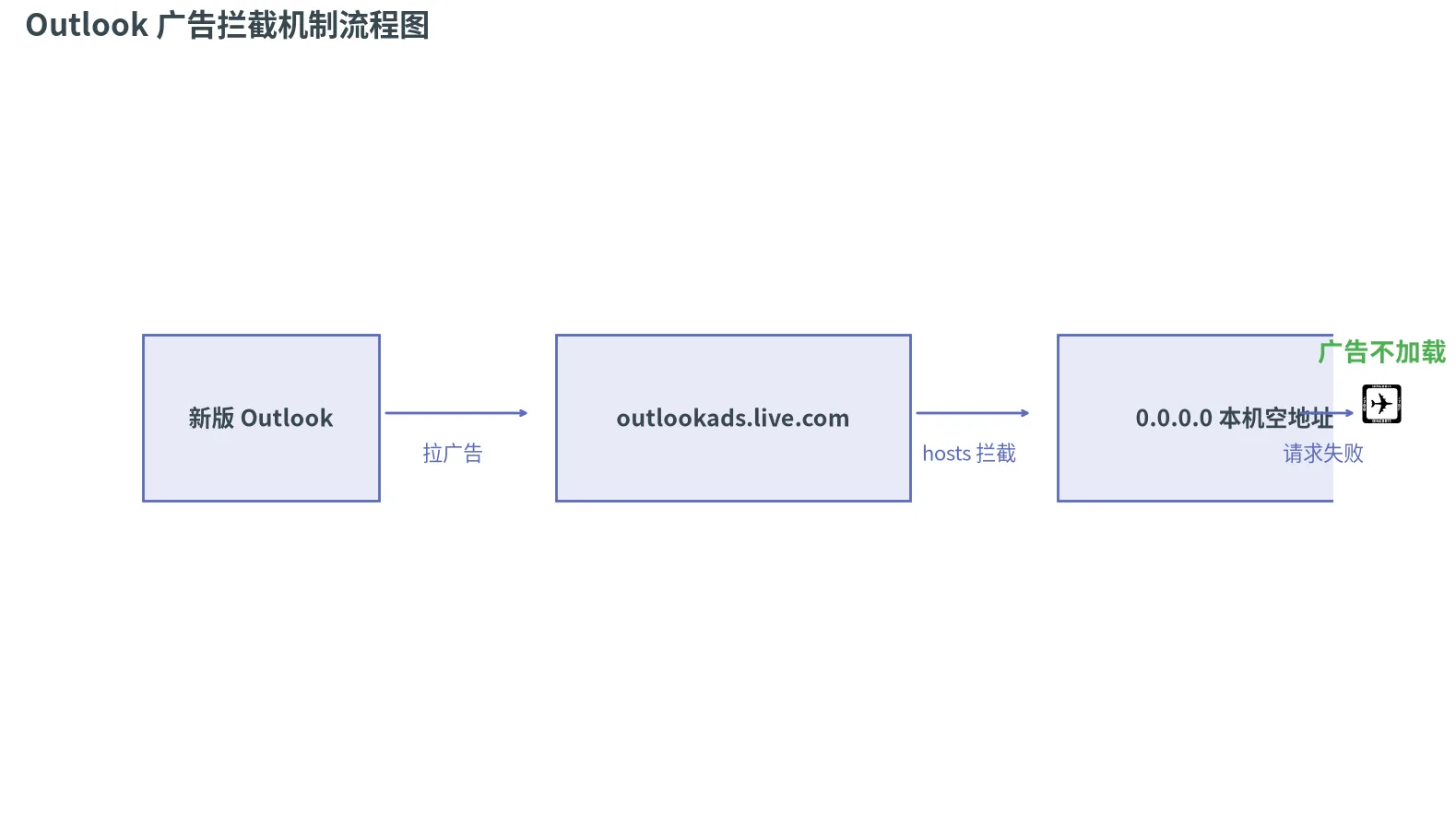
The Windows hosts file is purpose-built for exactly this—system-level domain redirection that applies to all programs, including the new Outlook’s WebView.
One Line in hosts, Ads Gone
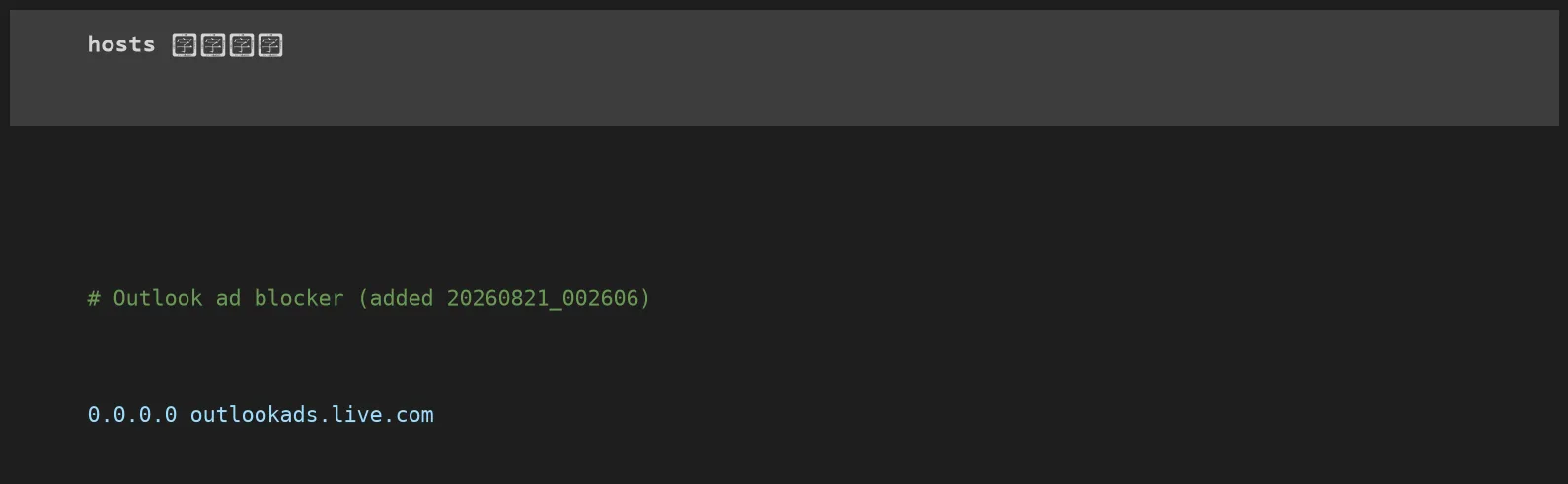
The hosts file lives at C:\Windows\System32\drivers\etc\hosts, and editing it requires administrator privileges. I added this single line:
| |
Pointing the ad domain to 0.0.0.0 (a null local address) means Outlook’s ad-fetching request can’t connect at all, leaving the ad slot empty. After making the change, I did three things as a matter of course: backed up the original hosts file (hosts.bak_*), flushed the DNS cache (ipconfig /flushdns), and restarted Outlook.
This trick isn’t something I dreamed up on my own—there’s a dedicated open-source project on GitHub called Pyenb/Outlook-desktop-ad-blocker whose README documents the exact same manual approach.
Verification: Just Ping It
Once the block is in place, don’t just take it on faith—verify. Ping the ad domain:
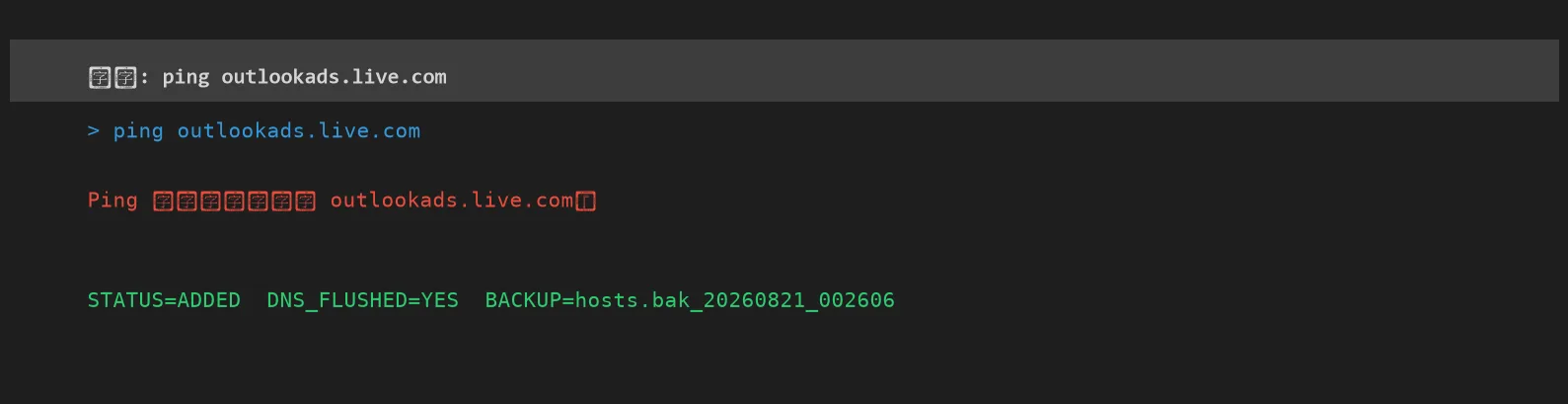
It returns “could not find host”—the domain no longer resolves to the real ad server. Open Outlook, and that Adobe ad? Gone.
Three Limitations Worth Knowing
The hosts method is clean, but it’s not a silver bullet. Three things to keep in mind:
- The ad slot stays as a blank area. The ad disappears, but the region is still there—just empty, with no more misclickable ads. That’s a characteristic of the hosts approach, not a bug.
- If Microsoft switches to self-hosted ads, this breaks. Currently the ads are served from the standalone domain
outlookads.live.com, which hosts can intercept. If Microsoft ever moves ad delivery to the same domain as the mail itself, hosts blocking won’t catch it—you’d need to identify the new ad domain and add a rule. - Only works for the new Outlook desktop app. Classic Outlook never showed ads in the inbox to begin with. Outlook.com on the web uses a different ad pipeline, so this hosts line may not help there.
If the hosts Method Isn’t Enough: Two Other Paths
- Switch clients (free): Thunderbird or Foxmail, connecting to your Outlook/Hotmail mailbox via IMAP—completely ad-free. Note that Microsoft has enforced OAuth2 since September 2025; just select OAuth2 as the login method and sign in through the browser popup.
- Subscribe to Microsoft 365 Basic (~$19.99/year): The cheapest official ad-free tier—it even blocks self-hosted ads that hosts can’t catch, plus you get 100 GB of cloud storage.
How to Undo It
Fully reversible. Open the hosts file with an administrator-level Notepad, delete those two lines (the # Outlook ad blocker ... comment and 0.0.0.0 outlookads.live.com), save, restart Outlook, and the ads come back. Since I backed up the original file before making changes, restoring it from the backup works too.
One line in hosts—free, reversible, no client swap. Compared to paying for a subscription or switching software, it’s the cleanest solution on a machine like the Home and Student edition where there’s simply no classic Outlook to switch to.