Registering a Gmail account has increasingly become like opening a blind box: you either get stuck at the phone verification step, or the account gets deactivated the very next day. In September 2026, a post titled “Can’t You Just Keep Feeding Google Accounts Like This?” appeared on the LINUX DO forum. The original poster shared their account-raising lineup and, across layered replies, laid out a complete method for registration and maintenance. This guide distills the post’s approach into a step-by-step pipeline: a $12/month US-region AWS VPS, running a Docker-based remote browser, paired with native Chrome Profiles and a few lightweight extensions, to handle registration and daily account care.
Why Registering a Gmail Account Directly Has Become So Hard
Breaking it down, Google’s registration risk control mainly pressures four dimensions: IP reputation, browser environment, registration behavior, and post-registration activity. The common domestic scenario is a home broadband exit combined with an ordinary browser—exit IPs are heavily shared, and browser fingerprints are all but identical. Registration is easily flagged for phone verification. Even if you pass verification, a new account with no stable activity patterns is likely to be flagged by the system. The old workarounds for bypassing phone verification are also failing: phone numbers from SMS platforms have been used repeatedly and are deep on risk-control blacklists; virtual carrier number ranges are mass-flagged; and free proxies and shared data-center IPs have notoriously poor reputation scores. To stably obtain new accounts today, the registration environment itself must first be solid.
The post contained two camps. The user in reply #2 said, “I got one banned just a few days ago.” Reply #22 was more pessimistic: “No matter what setup you use, you get banned first, period.” Reply #26 also asked, “Risk control is pretty tight now, right?” Meanwhile, the original poster’s situation was the opposite: maintaining roughly 200 accounts simultaneously, and accounts registered just a few days before the post “didn’t trigger phone binding” (reply #27). Under the same rules, the gap comes down to environment and pacing: accounts always originate and reside within a stable, explainable environment, with usage frequency low enough to just be “idle.” Let’s follow the original post’s logic step by step.
Core Ideas from the Original Post
The original poster’s method can be distilled into three things: native profiles, remote registration, and low-frequency account care.
The first is using Chrome native Profiles as the multi-account carrier. In reply #3, a commenter asked, “What’s that? Chrome’s own multi-account management?” Reply #5 answered, “Don’t you have the option to add a Chrome Profile in the browser, as shown in the picture.” Each Profile comes with its own independent cookies, login state, extensions, and browsing history—this layer of isolation is a built-in browser-level capability. That’s why reply #9 summarized, “So you don’t need fingerprint browsers.”
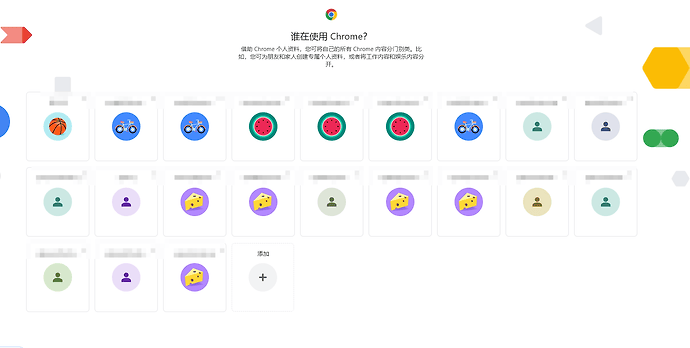
The main post’s landscape screenshot showing what the author calls a “native account-raising” lineup; the local archive is the forum-compressed display size.
The second is doing all registration inside a remote browser on the VPS. The main post’s updated section is very straightforward: deploy Neko virtual browser via Docker on your US server, access it remotely, and register freely—no phone binding needed, and sometimes not even a recovery email is required. 2GB of RAM or more is recommended (reply #19 restated the same sentence). The key idea here is a fixed registration environment: the browser, IP, and timezone all sit in the US, so the account grows up within the same environment from birth.
The third is controlling density and pacing: one profile hosting 6 to 8 accounts (reply #4), one IP split across 6 to 8 accounts (reply #7), and normally “just letting it sit idle” (the main post’s opening line). Reply #20 asked, “Can’t you create too many accounts under one server?” The author replied, *“Just click a button in the console to switch the IP” (reply #21)—meaning you group accounts by swapping the outbound IP through the cloud console. The post ends at reply #28’s question: “What VPS are you using? Data-center IP or home broadband?” The author didn’t reply further, and this question was left unanswered in the thread.
Hardware Layer: A $12 AWS 2C2G VPS
First, a clarification: the original post never specified the cloud provider or instance type, and reply #28 went unanswered. The configuration of “12 dollars, 2C2G, US region” is this article’s recommended setup, selected based on the main post’s “2GB RAM or more” threshold, for the following reasons.
The main post states the memory threshold plainly: Neko needs 2GB or more. AWS Lightsail’s US-region 2GB plan (2 vCPU, 2GB RAM, 60GB SSD) is priced at $12/month—right on the line. Region selection: us-east-1 (Northern Virginia) or us-west-2 (Oregon), both common US mainland regions. If you don’t use Lightsail, EC2’s t3.small with 2GB RAM is also a viable alternative, though the billing structure is more granular.
Steps to get the machine running:
- Create an Ubuntu instance via the wizard (22.04 or 24.04 both work);
- Attach a static IP on the console’s Networking page (Lightsail static IPs are free);
- Install Docker;
- Deploy Neko. Below is a standard-style launch command. Note: the original post never included a command—this is a common generic writeup:
| |
- Security hardening. The original post didn’t cover this; standard practice adds two notes: restrict the security group to only allow port 8080 from your own exit IP, change NEKO_PASSWORD to a strong passphrase, and if possible, wrap it in TLS with Caddy or Nginx.
The other use of a static IP is what the author meant by “just click a button in the console”: detach the old static IP from the instance and assign a new one, giving your account groups a fresh exit. Watch the frequency—repeatedly swapping IPs on the same machine in a short span is one of the most conspicuous risk signals for a new account environment.
Regarding the data-center IP vs. residential IP tradeoff: this was the question posed in reply #28, left unanswered in the post. From the main post and reply #27, the author completed registration on a data-center IP and claimed success. Data-center IPs are cheap, stable, and available on demand, but their downside is that heavily abused subnets score poorly in Google’s reputation databases. Residential IPs are cleaner but cost an order of magnitude more. For beginners, the suggestion is to first run through the entire process on a data-center IP and stabilize the environment, then decide whether to upgrade the line.
Registration Process Walkthrough
- Open
http://<instance_ip>:8080/in a browser, enter the NEKO_PASSWORD to access the remote Chrome. This is the “computer” for all subsequent registration actions. - Navigate to accounts.google.com and follow the standard flow: name, date of birth, email username.
- Phone verification is the biggest variable. The original poster’s experience is that it rarely triggers in a US VPS environment: “No phone binding needed, sometimes not even a recovery email is required” (main post). Reply #27’s phone screenshot confirms the new account’s status. Note that the post only states the author’s own results and doesn’t provide a workaround if phone verification does trigger. If it does get triggered, the general approach is to reduce the suspiciousness of that registration attempt: try at a different time, switch to a new exit IP, or change the email prefix and restart the flow—which itself requires passing verification.
- A recovery email can be added later. Reply #27’s original text says, “I only bound the recovery email yesterday”—complete registration and start using the account normally first, then add the recovery email a day or two later.
- After the first account is registered, leave the login session in the remote browser and complete one round of genuine use first (open the inbox, receive an email). Don’t rush to change the password, add bindings, or switch devices.
- When you need more accounts, follow reply #7’s density guideline: 6 to 8 accounts per IP, and once that’s reached, go to the console to swap the IP and run another round (reply #21).
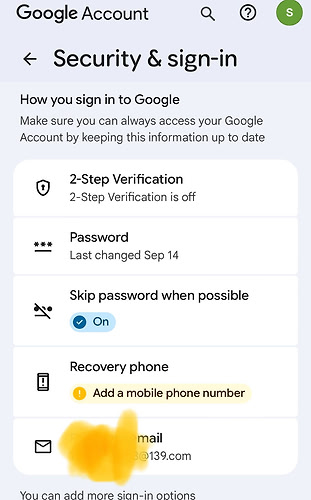
The original poster used this phone screenshot to respond to the skepticism of “you don’t even need to bind a phone number?”; exact on-screen content should be verified against the original post page.
Daily Account-Care Checklist
The account-care actions described in the post are surprisingly few. Listed out, they fit on a single card:
- Periodic logins: new accounts should log in once every one to two weeks (reply #17, original quote: “Remember to log into new accounts every week or two”)
- Stable IP country: don’t let an account’s resident IP jump countries (reply #17)
- Irregular login timing: don’t have every account log in at a perfectly regular schedule (reply #6’s reminder: *“Can’t every account’s login time be completely regular, right?”)
- Idle state: beyond periodic logins, no extra action is needed (main post: “Just let it sit idle”)
- Density control: one profile hosting 6 to 8 accounts (reply #4’s attached image); some users run 3 Profiles each hosting five or six accounts with no issues (reply #12)
- Delayed auxiliary info: a recovery email is not a pre-registration requirement—bind it a day or two later (reply #27)
- Single environment: no fingerprint browsers; all accounts live within the same remote browser and local Chrome Profiles (reply #9)
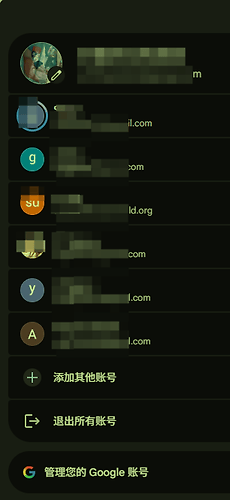
Reply #4’s portrait screenshot with the caption “one profile hosting 6-8 accounts lol”—showing an account list/switcher interface; exact content as per the original post.
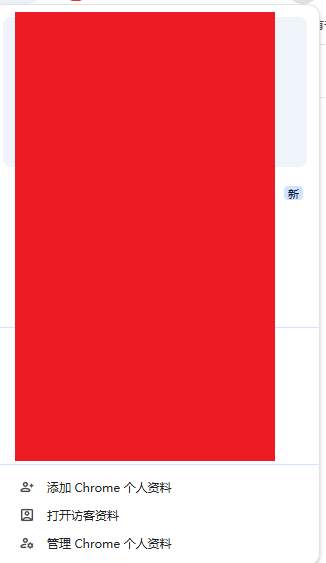
Reply #5’s answer “Don’t you have the option to add a Chrome Profile in the browser, as shown”—screenshot showing the Chrome Profile addition entry point.
Laid out, the core of account care boils down to two things: keep the environment stable, and keep actions minimal. Structurally, it’s a three-tier tree: the outermost layer is the exit IP, the middle layer is Chrome Profiles, and the tips are the individual accounts. With stable IPs and Profiles, an account’s place of birth and residence are consistent, and the behavior curve observable by risk control is nearly a flat line. For future automation, this tree can serve as the skeleton of a configuration file: which IPs correspond to which Profiles, and which accounts hang under each Profile—written as a checklist for regular inspection, with login reminders handled by a calendar or script.
Automation & Tools Inventory
Below is a table organizing the tools mentioned in the post by their originating reply number. Where the post doesn’t specify a name, it’s marked accordingly:
| Tool / Method | Purpose | Origin Reply |
|---|---|---|
| Neko (neko.m1k1o.net, Docker image m1k1o/neko/chrome) | Self-hosted remote browser; the carrier for the registration environment | Main post, reply #19 |
| Chrome Profiles | Native account isolation; replaces fingerprint browsers | Replies #3, #4, #5, #7, #9 |
| Proxy-switching browser extensions | Assign outbound IPs per account or Profile | Replies #7, #9 (plugin name not specified), #24 |
| Console static IP swapping | Grouping and rotation of registration exit IPs | Replies #20, #21 |
| Promotion scripts (B2B/export-Trade oriented) | The post states one run takes ~3 hours, quoted at $1,800–$2,800 | Main post, reply #18 |
Regarding that plugin screenshot: reply #8 asked, “What browser extension is this?” The author posted a screenshot in reply #9 with the caption “This one right here,” but didn’t leave the plugin name. It cannot be identified accurately here; users can evaluate mainstream proxy-switching extensions themselves. Reply #24 further asked, “How do you set which IP corresponds to which account?"—also left unaddressed in the post.
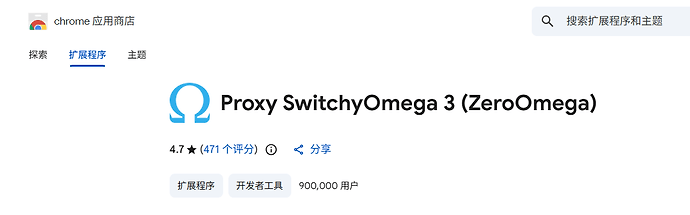
The plugin interface screenshot posted by the author in reply #9 in response to the question; the plugin’s specific name is not stated in the post.
The promotion script is only mentioned in the main post: “Just run the script and it pushes—each run takes about 3 hours.” Reply #18 added the pricing: “One script run costs 2,800.” The script is not open-source, and no details are provided. Reply #25’s追问 on promotion methods also went unanswered. This information ends here.
Common Pitfalls & Compliance Boundaries
The pitfalls, evidenced both within and outside the post:
- Account bans are real. Reply #2 said, “You’ve got a lot there—I got one banned just a few days ago.”
- Newcomer-friendliness is questionable. Reply #22 speculated, “These are probably old accounts registered in the past,” and reply #26 felt, “Risk control is pretty tight now, right?”
- Changes are the biggest risk. Swapping the IP, changing the password, adding bindings, or switching devices right after a new account lands can trigger a review (this is the article compiler’s supplementary judgment—the post doesn’t elaborate).
- Data-center IPs aren’t as clean as residential IPs; don’t register and swap IPs on the same machine.
- Questions the post didn’t answer: plugin name, script details, data-center vs. home broadband (reply #28), and what to do if phone verification is triggered—you’ll need to figure these out yourself.
On the compliance boundary, this must be stated clearly:
- Google’s Terms of Service generally prohibit bulk registration and multi-account abuse. Accounts registered through this method can be suspended at any time—you bear the risk.
- The export-trade promotion mentioned in the original post (pitching promotion services to Amazon seller audiences, using scripts for bulk promotion) sits in an even more sensitive area. Bulk marketing and review manipulation violate platform policies and may even be illegal in many jurisdictions.
- This article is a technical documentation and archive only, for legitimate use cases. Please comply with Google’s ToS and your local laws. Assess the risks to data and assets within your accounts on your own.
Sources
This article is compiled from the LINUX DO forum post “Can’t You Just Keep Feeding Google Accounts Like This?” (local web archive: published 2026-09-19 21:21, main post last edited 2026-09-20 22:50, discussion continued until 2026-09-20 22:33, in the “Miscellaneous” section). The reply numbers cited in this article are derived from the archive extraction; “the original poster” always refers to the main post author of that thread. Screenshots are from the post body (forum-compressed display size), stored at /images/gmail-vps-guide/. No specific forum member usernames appear in this article.